








The best webcams for video calls and remote work
Five webcams compared for video calls and remote work, and what resolution, low-light handling, auto-framing and privacy shutters really do in meetings.
As an Amazon Associate I earn from qualifying purchases. When you buy through links on this page, we may earn a commission at no extra cost to you. Learn more
Laptop cameras have improved, but many are still small and low-resolution, and they point from the wrong angle when your laptop is closed or sits off to the side of a monitor. An external webcam clipped to the top of your main screen puts you at eye level, copes better with dim or uneven home-office light, and often adds better microphones and a privacy shutter.
For work calls, resolution is only part of the story. Video apps such as Zoom, Teams and Google Meet usually send 720p or 1080p video anyway, so light handling, field of view, auto-framing and plug-and-play reliability matter more than headline 4K numbers. We compared popular webcams from Logitech, Anker and OBSBOT for meetings, interviews and remote work, rather than streaming, and picked the best for different rooms and budgets.
Our top picks
-
1
 Illustration
Best overall
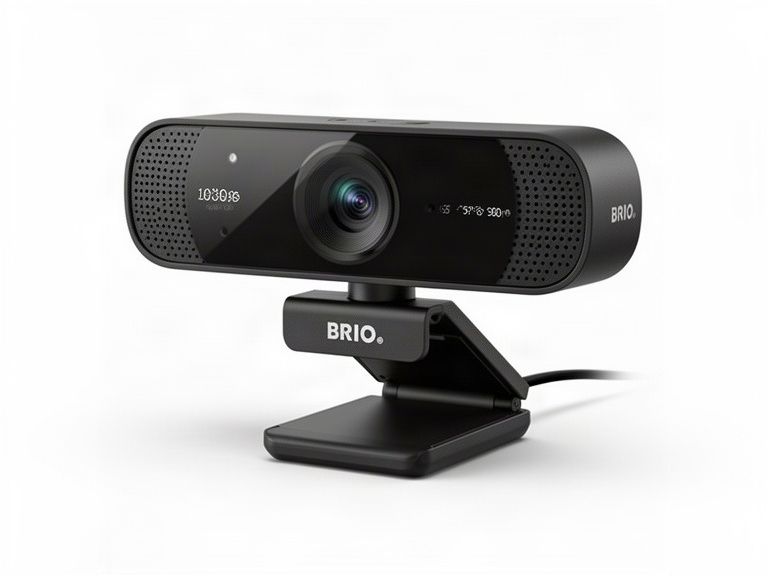
Logitech Brio 500 Full HD Webcam
Most home-office workers
Max resolution1080p at 30fpsConnectionUSB-CFramingAuto-framing (RightSight) -
2
 Illustration
Best image quality
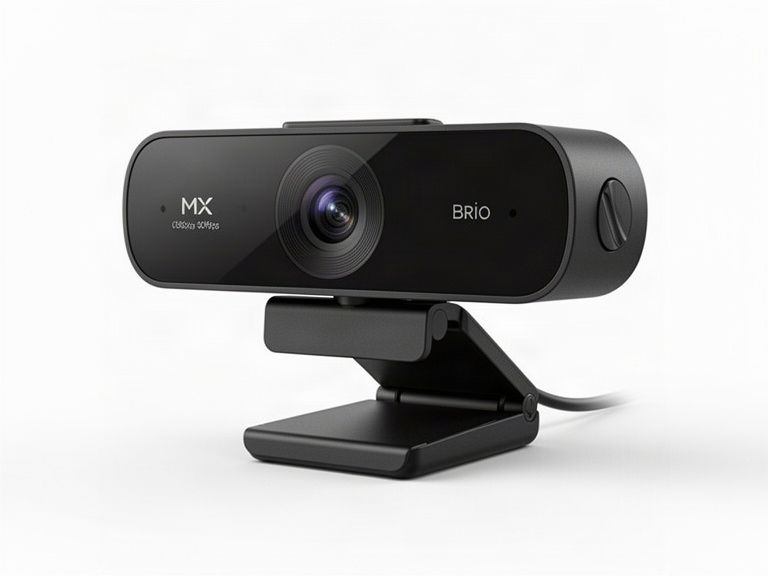
Logitech MX Brio 4K Webcam
Executives, presenters and anyone who records video
Max resolution4K at 30fps (1080p up to 60fps)ConnectionUSB-CFramingAdjustable field of view with Show Mode -
3
 Illustration
Best value
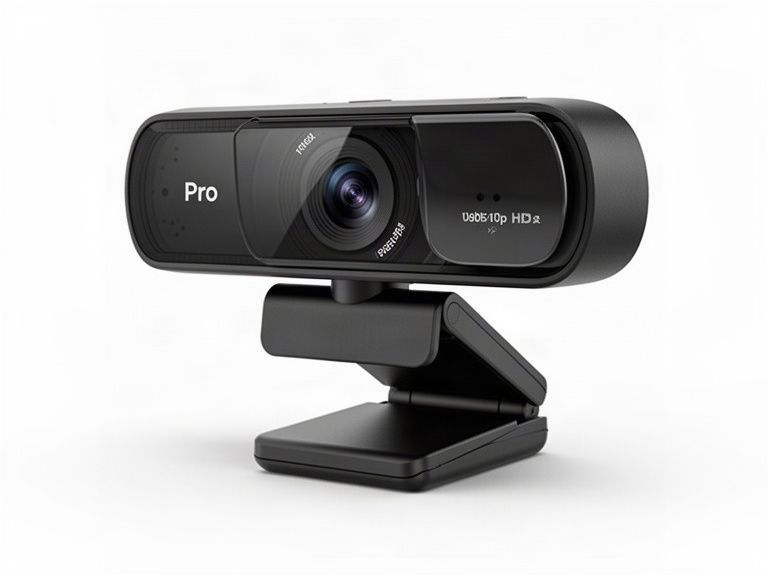
Logitech C920s Pro HD Webcam
Reliable, budget-friendly everyday calls
Max resolution1080p at 30fpsConnectionUSB-AFramingFixed 78° view -
4
 Illustration
Best AI framing
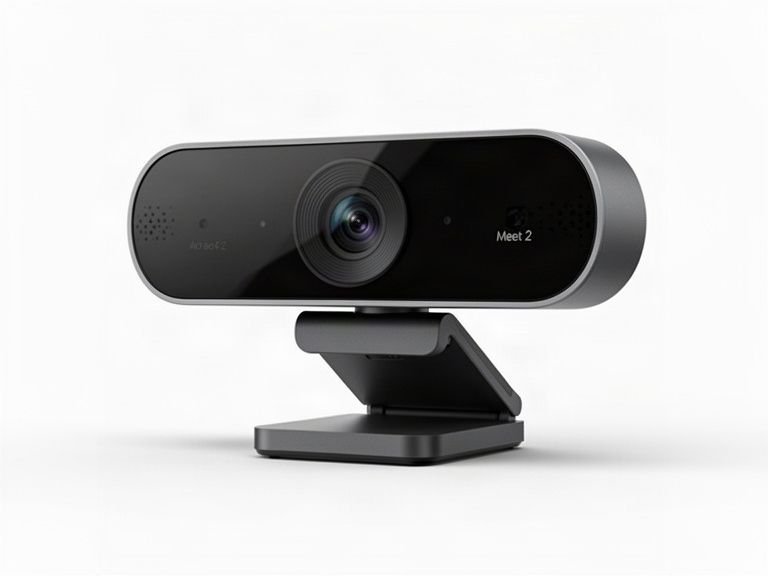
OBSBOT Meet 2 4K Webcam
People who move around during calls or present at a whiteboard
Max resolution4KConnectionUSB-CFramingAI auto-framing -
5
 Illustration
Best budget 2K
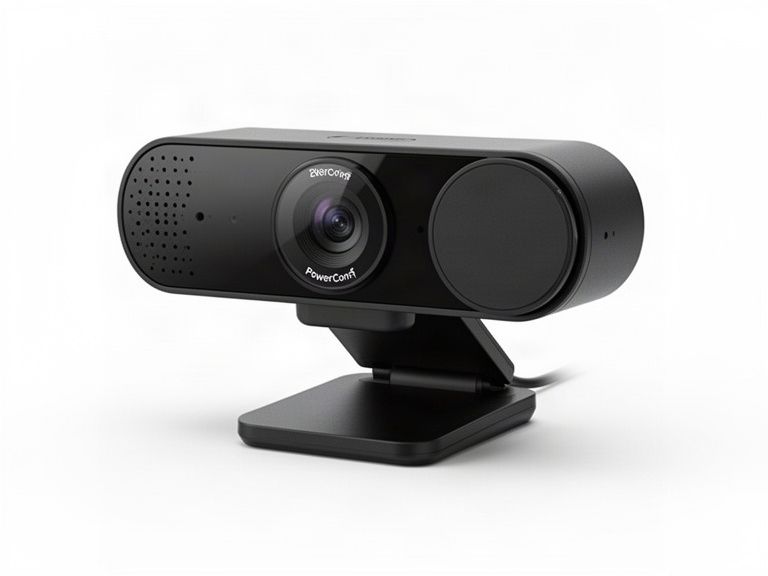
Anker PowerConf C200 2K Webcam
Students and budget-conscious home offices
Max resolution2K at 30fpsConnectionUSBFramingAdjustable field of view
Logitech Brio 500 Full HD Webcam
Illustration
A 1080p webcam with automatic light correction, auto-framing, an adjustable field of view and a built-in privacy shutter.
Best for: Most home-office workers- Max resolution
- 1080p at 30fps
- Connection
- USB-C
- Framing
- Auto-framing (RightSight)
- Field of view
- Adjustable 65°, 78° or 90°
- Privacy
- Built-in shutter
- Extras
- Show Mode for desk sharing, dual mics
What we like
- Automatic light correction helps in dim or backlit rooms
- Auto-framing keeps you centered
- Adjustable field of view for solo or shared calls
- Built-in privacy shutter
Keep in mind
- 1080p only, so less detail when cropping
- Advanced settings need Logitech's app
- USB-C cable may need an adapter for older computers
The Brio 500 is built for exactly the kind of calls most people make from home. Its 1080p sensor is paired with Logitech's RightLight automatic light correction, which brightens dim rooms and balances backlit scenes, and RightSight auto-framing keeps you centered when you lean back or shift in your chair.
You can switch the field of view between 65, 78 and 90 degrees in Logitech's app, tight for a solo desk or wide for two people. Show Mode is a clever extra: tilt the camera down and it flips the image to show a sketch or document on your desk. A built-in shutter closes over the lens for privacy, and dual microphones handle quick calls.
It tops out at 1080p, so a 4K camera retains more detail when cropping. For everyday meetings, though, it covers the features that make the biggest difference.
Bottom line: The best webcam for most remote workers, with strong light handling and framing features.
Logitech MX Brio 4K Webcam
Illustration
A premium 4K webcam with a large sensor, 60fps at 1080p, Show Mode and an integrated privacy shutter.
Best for: Executives, presenters and anyone who records video- Max resolution
- 4K at 30fps (1080p up to 60fps)
- Connection
- USB-C
- Framing
- Adjustable field of view with Show Mode
- Privacy
- Integrated shutter
- Extras
- Dual beamforming mics
What we like
- Sharp 4K image with a large sensor for better low-light results
- 1080p at 60fps for smooth motion
- Show Mode for sharing desk documents
- Privacy shutter built into the body
Keep in mind
- Premium-priced
- Most call apps won't send full 4K
- Advanced controls require Logitech's software
The MX Brio is Logitech's premium webcam for people whose video presence matters, such as client-facing staff, managers who run large meetings and anyone who records training or presentation videos. It captures up to 4K at 30fps or 1080p at a smoother 60fps, and its larger sensor gives cleaner, more natural images in ordinary indoor light.
Like the Brio 500, it has Show Mode for tilting down to show something on your desk, adjustable field of view in Logitech's app and a privacy shutter built into the body. Dual beamforming microphones help pick up your voice over room noise.
The catch is that most meeting apps send 1080p or less, so the 4K resolution matters most for recording and cropping. If your calls are mostly internal check-ins, the Brio 500 is better value.
Bottom line: The best-looking webcam here, worth it if you present, record or simply want the cleanest image.
Logitech C920s Pro HD Webcam
Illustration
A long-running 1080p webcam with a 78-degree view, stereo microphones and an attachable privacy shade.
Best for: Reliable, budget-friendly everyday calls- Max resolution
- 1080p at 30fps
- Connection
- USB-A
- Framing
- Fixed 78° view
- Privacy
- Attachable privacy shade
- Extras
- Stereo mics, autofocus
What we like
- Proven, widely supported 1080p webcam
- Natural 78-degree field of view for one person
- Autofocus and stereo microphones
- Includes a privacy shade
Keep in mind
- Struggles more in low light than newer models
- No auto-framing
- USB-A plug needs an adapter on USB-C-only laptops
The C920s is one of the most widely used webcams ever made, and that's a strength. It's plug-and-play on almost any computer and works with every major meeting app. Its 1080p image with autofocus is clear in decent light, and the 78-degree field of view frames one person neatly.
Stereo microphones on either side of the lens are good enough for quick calls, and the "s" version adds a privacy shade that clips over the lens when you're not on camera.
The design is older, so it doesn't handle dim or backlit rooms as well as newer cameras with better light correction, and there's no auto-framing. It also plugs into USB-A, so you'll need an adapter for a USB-C-only laptop. For a dependable, budget-friendly upgrade over a laptop camera, it remains a safe choice.
Bottom line: A dependable, budget-friendly 1080p webcam that works with almost anything.
OBSBOT Meet 2 4K Webcam
Illustration
A tiny 4K webcam with AI auto-framing that follows you as you move in front of the camera.
Best for: People who move around during calls or present at a whiteboard- Max resolution
- 4K
- Connection
- USB-C
- Framing
- AI auto-framing
What we like
- AI auto-framing keeps you in shot as you move
- 4K resolution leaves room for cropping
- Very compact, easy to carry
- Works as a standard USB webcam in meeting apps
Keep in mind
- Framing features rely on OBSBOT's app
- Built-in audio is no match for a headset
- Check privacy-cover options in the listing
OBSBOT is known for AI-tracking cameras, and the Meet 2 brings that idea to a tiny 4K webcam for calls. It uses its high resolution to crop and pan automatically, keeping you centered as you lean, stand up or step toward a whiteboard, so you don't have to stay frozen in one spot.
It's very compact, so it suits laptops and travel as well as a desk monitor, and it shows up as a standard USB webcam in Zoom, Teams and Meet. Framing modes and image settings are controlled through OBSBOT's app.
Because it's so small, use a headset or separate microphone for the best audio, and check the listing for privacy-cover options. If you present, teach or move around during calls, its framing is a real advantage.
Bottom line: The best choice for people who move during calls and want the camera to follow them.
Anker PowerConf C200 2K Webcam
Illustration
A budget-friendly 2K webcam with an adjustable field of view, noise-reducing microphones and a privacy cover.
Best for: Students and budget-conscious home offices- Max resolution
- 2K at 30fps
- Connection
- USB
- Framing
- Adjustable field of view
- Privacy
- Built-in privacy cover
- Extras
- Dual noise-reducing mics
What we like
- Sharper than 1080p webcams at a budget-friendly price
- Adjustable field of view for solo or wider shots
- Noise-reducing microphones
- Built-in privacy cover
Keep in mind
- Low-light performance trails premium models
- No auto-framing
- Field-of-view changes need Anker's app
The Anker PowerConf C200 offers a step up from 1080p without a premium price. Its 2K sensor gives a little more detail, and you can switch the field of view in Anker's app from a tight head-and-shoulders shot to a wider view that fits a second person.
Dual microphones with noise reduction are better than many laptop mics for quick calls, and a built-in cover slides over the lens when you want privacy. It clips onto a monitor or laptop like any other webcam and works with the major meeting apps.
Like most budget webcams, it needs decent lighting to look its best, and there's no auto-framing. For students and home offices that want a clear, simple upgrade from a laptop camera, it's a strong value.
Bottom line: A budget-friendly 2K webcam with the privacy and flexibility most home offices need.
Side-by-side comparison
| Product | Max resolution | Connection | Framing | Field of view | Score |
|---|---|---|---|---|---|
| Logitech Brio 500 Full HD WebcamBest overall | 1080p at 30fps | USB-C | Auto-framing (RightSight) | Adjustable 65°, 78° or 90° | 9.1 |
| Logitech MX Brio 4K WebcamBest image quality | 4K at 30fps (1080p up to 60fps) | USB-C | Adjustable field of view with Show Mode | — | 9.0 |
| Logitech C920s Pro HD WebcamBest value | 1080p at 30fps | USB-A | Fixed 78° view | — | 8.6 |
| OBSBOT Meet 2 4K WebcamBest AI framing | 4K | USB-C | AI auto-framing | — | 8.5 |
| Anker PowerConf C200 2K WebcamBest budget 2K | 2K at 30fps | USB | Adjustable field of view | — | 8.3 |
Specifications are from manufacturer listings at the time of writing and can change between production runs.
Resolution: 1080p is enough for most calls
Most video calls are sent at 720p or 1080p, so a good 1080p webcam looks about as sharp as a 4K one in a typical meeting. 4K webcams help when the software crops in for zoom or auto-framing, when you record videos, or when you present in apps that support higher resolutions. 2K models sit in between.
Light handling matters most
The biggest difference between budget and better webcams is how they cope with a dim room or a bright window behind you. Look for larger sensors, HDR or automatic light correction. Then fix the light itself: face a window or put a lamp behind your screen, and avoid sitting with a bright window behind you, which turns any camera's picture into a silhouette.
Field of view and framing
A narrow field of view (about 65°–78°) shows your head and shoulders, which is ideal for a solo desk and hides clutter. A wide view (90° or more) fits two people or a whiteboard but shows more of your room. Adjustable field of view and auto-framing, which keeps you centered as you move, give you the best of both.
Microphones and privacy
Built-in webcam microphones are fine in a quiet room but pick up keyboard clatter and echo; a headset or a dedicated microphone still sounds better. A physical privacy shutter lets you block the lens without unplugging the camera, which many people appreciate in a home office.
Mounting and connection
Most webcams clip onto a monitor or laptop lid, and many have a tripod thread underneath. Check whether the camera uses USB-C or USB-A and whether the right cable or adapter is in the box. Business-focused models are often certified for Microsoft Teams and Zoom and are easy for company IT to approve.
If you use a laptop beside an external monitor, mount the webcam on the screen you look at most during calls, ideally above the window that shows the other people. That way you appear to make eye contact instead of looking off to the side.
Setup tips
Place the camera at or just above eye level, about an arm's length away. Install the maker's app to fine-tune exposure, white balance and field of view, then choose the webcam and your preferred microphone in your meeting app's settings. If the image looks soft, check that the lens protective film has been removed and that the app isn't limited to a low resolution.
Frequently asked questions
Is a 4K webcam worth it for Zoom and Teams calls?
Usually not just for calls, because most meeting apps send 720p or 1080p video. A 4K webcam can still look better if it has a larger sensor and better processing, and the extra resolution helps with digital zoom, auto-framing and recording. For calls alone, a good 1080p camera is plenty.
Should I use the webcam’s built-in microphone?
It is fine in a quiet room, and better than many laptop mics. A headset or a dedicated USB microphone usually sounds clearer and picks up less keyboard noise and room echo.
Will a USB webcam work with a Mac?
Most mainstream webcams are plug-and-play on macOS as well as Windows. The maker’s companion app may have fewer features on a Mac, so check its compatibility if you want to adjust field of view or auto-framing.
How do I fix a dark or grainy webcam picture?
Add light in front of you, such as a desk lamp behind the monitor or facing a window, and avoid strong light behind you. Turn on the camera’s auto light correction or HDR in its app, and lower the exposure if the picture flickers.
What is auto-framing?
Auto-framing uses the camera’s wide view to crop and pan automatically, keeping you centered as you move or lean. It is useful if you shift around during calls, and it works best with higher-resolution cameras.
How we picked
We compared manufacturer specifications for popular webcams aimed at video calls and remote work, including resolution and frame rate, field of view, auto-framing and light correction, microphones, privacy shutters, connection and meeting-app certifications, and weighed how each suits different rooms and budgets. Our picks and scores are based on this research — we have not tested these products hands-on. Brands cannot pay to be included. Read our full method.